Saturday, July 6, 2019

React Redux


Why Redux?

Redux is used to maintain a global data store for the whole react application, which determines a very important concept, "Single source of Truth".

If we don't use Redux, we have to pass data to every child, even the child does not need those data, but when a grandchild needs. It is a massive effort when building complex applications. After a grandchild updates a data, in the same way we have to pass the changes to root component through several components. (see the illustration below for a clear picture in mind)

Since Child components get all data from the parent, it is harder to pass the data to deeper levels more than one child. When a grandchild component updates a value, it needs to be passed through more than one parent.
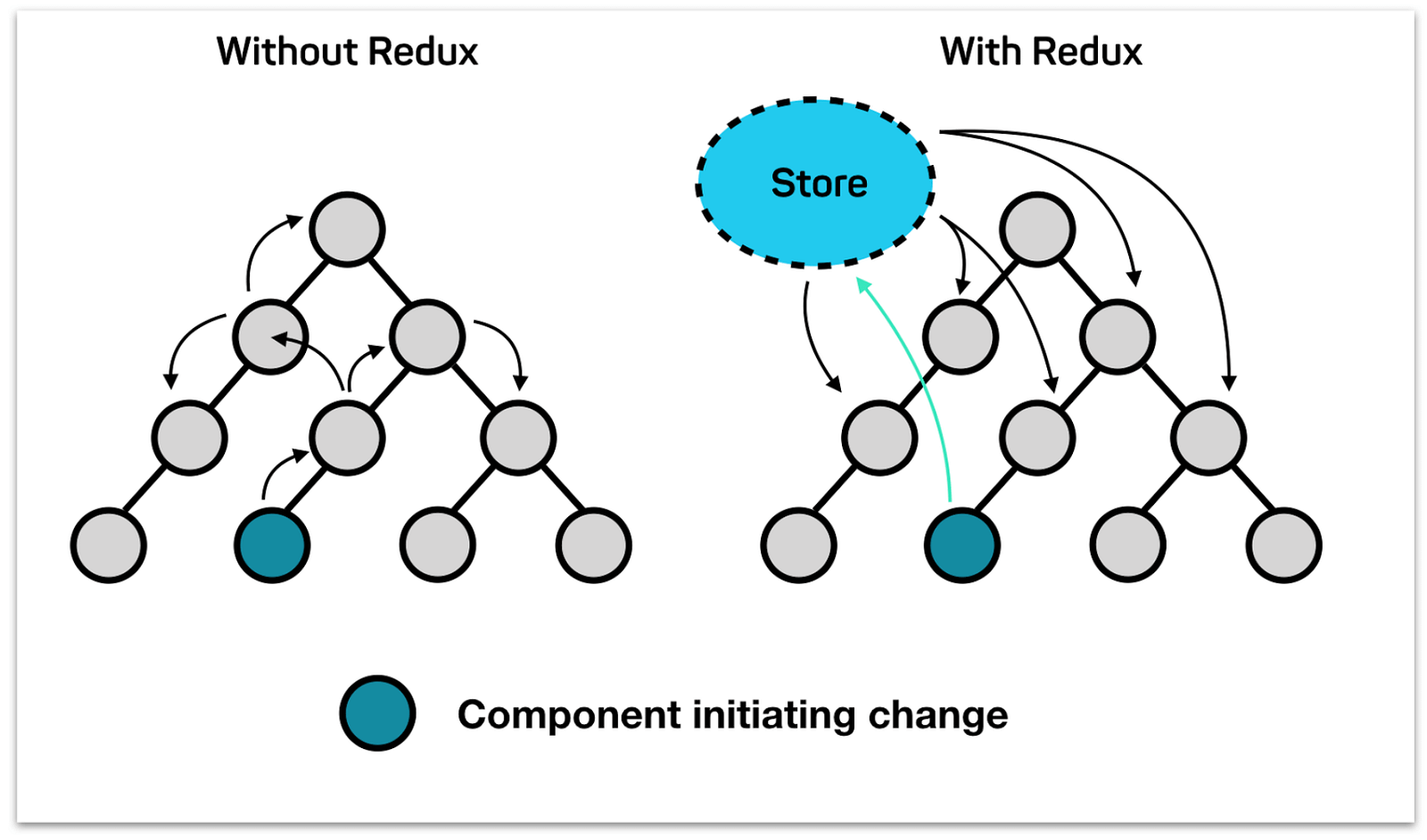


Image result for redux
Above image shows how complex it is to update a change when number of components gets increased in application. ( image credits: https://hackernoon.com/restate-the-story-of-redux-tree-27d8c5d1040a?gi=8d87a1156a58 ).

Redux gives you the facility of maintaining a single data store, with few key concepts.

Main concepts.
1. Store
2. Reducer
3. Action
4. Use of mapStateToProps()

At a glance in we'll look these concepts in a Simple manner

1. Store
Store is the global data store where all the application data resides. When a child component changes data, it is updated in the store, and other components may re-render based on the data changes.

2. Reducer
Reducer is a set of functions that does the create and update of store data.

3. Action
Action is a set of actions defined, which determines the reducer function to be called. When a component update store data, it calls the action.

4. Use of mapStateToProps()
mapStateToProps is a special function, which is called when rendering a component. When using redux, child components are sent data retrieved from store, as props to the child component. And also we can send data from parent as props even we use Redux. (Before using Redux we had to send all the data as props to the child)

Let's move to next post with a simple application


Monday, October 29, 2018

Multi Line line chart with chart JS library

This article contains how to draw a multi line graph with chart JS library. It contains a static data set. You can assign dynamic values and colors using php or any other appropriate language
Click to view Reference
Click to view official website


&lt!DOCTYPE html&gt
&lthtml&gt
&lthead&gt
 &ltstyle&gt
  .container { width: 80%; margin: 20px auto; }
  .p { text-align: center; font-size: 1px; padding-top: 140px; }
 &lt/style&gt
&lt/head&gt
&ltbody&gt

&ltdiv class="container"&gt
  &ltdiv&gt
    &ltcanvas id="canvas"&gt&lt/canvas&gt
  &lt/div&gt
&lt/div&gt

&ltscript src="https://cdnjs.cloudflare.com/ajax/libs/Chart.js/1.0.2/Chart.min.js"&gt&lt/script&gt
&ltscript&gt
var lineChartData = {
    labels: ["Data 1", "Data 2", "Data 3", "Data 4", "Data 5", "Data 6","Data"],
    datasets: [{
        fillColor: "rgba(220,220,220,0)",
        strokeColor: "rgba(220,180,0,1)",
        pointColor: "rgba(220,180,0,1)",
        data: [10, 30, 80, 20, 40, 10, 60]
    }, {
        fillColor: "rgba(151,187,205,0)", 
      strokeColor: "rgba(151,187,205,1)",
        pointColor: "rgba(151,187,205,1)",
        data: [20, 10, 40, 30, 80, 30, 20]
    }]

}

Chart.defaults.global.animationSteps = 50;
Chart.defaults.global.tooltipYPadding = 16;
Chart.defaults.global.tooltipCornerRadius = 0;
Chart.defaults.global.tooltipTitleFontStyle = "normal";
Chart.defaults.global.tooltipFillColor = "rgba(0,160,0,0.8)";
//Chart.defaults.global.animationEasing = "easeOutBounce";
Chart.defaults.global.responsive = true;
Chart.defaults.global.scaleLineColor = "black";
Chart.defaults.global.scaleFontSize = 16;/**/

var ctx = document.getElementById("canvas").getContext("2d");
var LineChartDemo = new Chart(ctx).Line(lineChartData, {
    pointDotRadius: 1,
    bezierCurve: false,
    scaleShowVerticalLines: false,
    scaleGridLineColor: "black"
});
&lt/script&gt

&lt/body&gt
&lt/html&gt


Sunday, October 21, 2018

Bar chart with d3.js library - horizontal bar chart with threshold levels

Bar Chart 3- horizontal

This article contains how to draw a horizontal bar graph with d3 JS library. And also this contains displaying different threshold levels for bars. It contains a static data set. You can assign dynamic values and colors using php or any other appropriate language

Click to view Reference
Click to view official website


<!DOCTYPE html>
<html lang="en">
  <head>
    <meta charset="utf-8">
    <title>Bar Chart 3-  horizontal</title>

 <style>
  #barchart { margin: 0; height: 100% }
  .bar:hover { fill: #003366 }
  /*Text class styling*/
  /*.text { fill: white; font-family: sans-serif }*/
 </style>

    <!-- Reference minified version of D3 -->
    <script type="text/javascript" src="https://d3js.org/d3.v3.min.js"></script>
  </head>

  <body>
 <div style="height:400px; width:auto">
  <div id="barchart" style="width:80%; height:100%">
  </div>
 </div>
    <script>
  // Create data array of values to visualize
 var dataArray = [63, 61, 54];
 var criticalArray = [90, 80, 80];
 var warningArray = [75, 70, 70];
 var test1Array = [50, 55, 30];
 var colArray = ["red","green","blue"];
 var txtArray = ["text1","text2","text3"];
 
 // Create variable for the SVG
 var svg = d3.select("#barchart").append("svg")
        .attr("height","100%")
        .attr("width","100%");

 // Select, append to SVG, and add attributes to rectangles for bar chart
 svg.selectAll("rect") // d=data, i=index
     .data(dataArray)
         .enter().append("rect")
     .attr("class", "bar")
     .style("fill", function(d, i){ return colArray[i]; })
     .attr("width", function(d, i) {return (d * 3)})
     .attr("height","40")
     .attr("y", function(d, i) {return (i * 60) + 20})
     .attr("x", function(d, i) {return (60*1)})
   
 svg.selectAll("rect2") // d=data, i=index // warningArray
     .data(dataArray)
     .enter().append("rect")
     .attr("class", "bar")
     .style("fill", function(d, i){ return "orange"; })
     .attr("width", function(d, i) {return (2 * 1)})
     .attr("height","44")
        .attr("y", function(d, i) {return (i * 60) + 20 -1 })
     .attr("x", function(d, i) {return 60+warningArray[i]*3}); /**/
   
      svg.selectAll("rect3") // d=data, i=index // test1Array
   .data(dataArray)
   .enter().append("rect")
   .attr("class", "bar")
   .style("fill", function(d, i){ return "#22aa88"; })
   .attr("width", function(d, i) {return (2 * 1)})
   .attr("height","44")
   .attr("y", function(d, i) {return (i * 60) + 20 -1 })
   .attr("x", function(d, i) {return 60+test1Array[i]*3}); /**/
  
      svg.selectAll("rect3") // d=data, i=index // 100%
   .data(dataArray)
   .enter().append("rect")
   .attr("class", "bar")
   .style("fill", function(d, i){ return "#b0b0b0"; })
   .attr("width", function(d, i) {return (2 * 1)})
   .attr("height","44")
   .attr("y", function(d, i) {return (i * 60) + 20 -1 })
   .attr("x", function(d, i) {return 60+100*3}); /**/

   
  // Select, append to SVG, and add attributes to text
  svg.selectAll("text") // colored value %
   .data(dataArray)
   .enter().append("text")
   .text(function(d) {return d+"%"})
                        .attr("class", "text")
                     .style("fill", function(d, i){ return colArray[i]; })
                        .attr("y", function(d, i) {return (i * 60) + 36})
                        .attr("x", function(d, i) {return 5 });
  
  svg.selectAll("text2") // colored text
   .data(dataArray)
   .enter().append("text")
   .text(function(d, i) {return txtArray[i]})
                        .attr("class", "text")
          .style("fill", function(d, i){ return colArray[i]; })
                        .attr("y", function(d, i) {return (i * 60) + 48})
                        .attr("x", function(d, i) {return 5 });/**/
     
  svg.selectAll("text3") // colored text
   .data(dataArray)
   .enter().append("text")
   .text(function(d, i) {return "100%"})
                        .attr("class", "text")
          .style("fill", function(d, i){ return "#b0b0b0"; })
                        .attr("y", function(d, i) {return (i * 60) + 20-1+44})
                        .attr("x", function(d, i) {return 50+100*3 });/**/
     
 </script>
  </body>
</html>


Bar chart with d3.js library - vertical bar chart

Bar Chart

This article contains how to draw a vertical bar graph with d3 JS library. It contains a static data set. You can assign dynamic values and colors using php or any other appropriate language

Click to view Reference
Click to view official website


<!DOCTYPE html>
<html lang="en">
  <head>
    <meta charset="utf-8">
    <title>Bar Chart</title>

 <style>
  html, body, #barchart { margin: 0; height: 100% }
  /*Rectangle bar class styling*/
  /*.bar { fill: #0080FF }*/
  .bar:hover { fill: #003366 }
  /*Text class styling*/
  /*.text { fill: white; font-family: sans-serif }*/
 </style>

    <!-- Reference minified version of D3 -->
    <script type="text/javascript" src="https://d3js.org/d3.v3.min.js"></script>
  </head>

  <body>
 <div id="barchart">
 </div>
    <script>
  // Create data array of values to visualize
  var dataArray = [63, 61, 54];
  var colArray = ["red","green","blue"];
  var txtArray = ["text1","text2","text3"];
  
  // Create variable for the SVG
  var svg = d3.select("#barchart").append("svg")
   .attr("height","100%")
   .attr("width","100%");

  // Select, append to SVG, and add attributes to rectangles for bar chart
  svg.selectAll("rect") // d=data, i=index
   .data(dataArray)
   .enter().append("rect")
   .attr("class", "bar")
   .style("fill", function(d, i){ return colArray[i]; })
   .attr("height", function(d, i) {return (d * 1)})
   .attr("width","40")
   .attr("x", function(d, i) {return (i * 60) + 25})
   .attr("y", function(d, i) {return 100 - (d * 1)});

  // Select, append to SVG, and add attributes to text
  svg.selectAll("text")
           .data(dataArray)
           .enter().append("text")
    .text(function(d) {return d+"%"})
           .attr("class", "text")
           .style("fill", function(d, i){ return colArray[i]; })
           .attr("x", function(d, i) {return (i * 60) + 36})
           .attr("y", function(d, i) {return 120 });
  
   svg.selectAll("text2")
           .data(dataArray)
    .enter().append("text")
    .text(function(d, i) {return txtArray[i]})
           .attr("class", "text")
    .style("fill", function(d, i){ return colArray[i]; })
           .attr("x", function(d, i) {return (i * 60) + 30})
           .attr("y", function(d, i) {return 135 });

 </script>
  </body>
</html>


Saturday, October 20, 2018

ZingChart threshold level monitoring line graph

LIne chart (area) - with highlighting

This article contains how to draw a line graph with Zing Charts. It contains a static data set. You can assign dynamic values and colors using php or any other appropriate language

Click to view Reference
Click to view Documentation

  <div height="500px" width="50%">
   <div id="myChart" style="height:300px; width:100%"></div>
  </div>
  
  <script>
   var myConfig = {
    "type":"area",
    "plot":{ 
     "stacked":false, 
     "stack-type":"100%" 
    }, 
    "series":[
     { "values":[20,40,25,50,15,45,33,34,20,40,25,50,15,45,33,34],
      "line-color":"black"
     },
     { "values":[30,5,18,21,33,41,29,15]
     },
     { "values":[5,30,21,18,59,50,28,33],
      //backgroundColor: '#FFC107'
     }, 
     { "values":[ [0,100] , [15,100] ],
      //backgroundColor: 'red',
      "line-color":"grey",
      "line-width": 0.6,
      
     },
     { "values":[ [0,80] , [15,80] ],
      "line-color":"red",
      //backgroundColor: '#FFC107',
      backgroundColor: 'orange',
      shadowAlpha: 0.0,
      alpha: 0.0,
      "line-width": 0.6
     },
     { "values":[ [0,70] , [15,70] ],
      "line-color":"green",
      backgroundColor: "green",
      shadowAlpha: 0.0,
      alpha: 0.0, //??
      "line-width": 0.6
     },
     { "values":[ [0,0] , [15,0] ],
      "line-color":"green",
      shadowAlpha: 0.0,
      alpha: 0.0,
      "line-width": 0.6
     }
    ] 
   };
 
   zingchart.render({ 
    id : 'myChart', 
    data : myConfig, 
    height: "100%", 
    width: "100%" 
   });
  </script>